What are we doing here
In Part1 of this series I talked about visting the sites of the National Parks system and trying to find a complete list of all sites and where they were. Since I couldn’t find what I was looking for I built a web scraper in Python that crawled across NPS.gov and created a list of each state’s parks and historical sites.
The good news is that Part 1 was the hardest and most tedious part of this project. And even better, Part 2 is the shortest and easiest. Here’s where we are in our process
- Scraping the needed data from the NPS.gov website with Python
- Passing this data through the Google API to get each park’s latitude and longitude with Python
- Plot all these locations on an interactive map in Tableau. When we’re done, we’ll have made this dashboard.
JSONs and APIs
Before we dive into the code it’s important to understand what we’re working with and we’re getting back. As an Amateur Data Scientist you may not have called an API before. And you may not have ever seen data come back in a JSON format. Maybe both acronyms are completely new to you. Let’s spend a moment on them.
APIs
API is short for “application program interface” but this is one of those acronyms where the short version has beat the original version. Besides, does hearing “application program interface” really tell you much more?
In amateur terms it’s this: An API is a way to get a defined set of information from a website. Sometimes you have to provide some information when you send it to the website, but not always. That information you get back will almost always be in JSON format.
JSONs
Again, the acronym here is “JavaScript Object Notation”. (And again this is functionally useless to know.) Instead, think of like this: JSON is a way to organize information that may have multiple levels or that may be sparsely populated without repeating data or having blanks For example, imagine you’re asking a system for a customer profile. It provides a name, an address and an email.
That could easily be one row of data. But…what it the customer has two email addresses on file? You can repeat the name and mailing address data but that has downsides as your data grows. You can add a column for “Email2”, but what is a customer has 3 or 4 emails? How many emails columns will you add and how often are they going to be blank.
JSON can handle this by separating the data into what are called key:value pairs. The key is the description of the data, in this case “email address”. The value is just that, the actual customer email address.
To see this in action follow this link api.open-notify.org/astros.json. This is a great API that returns the names of everyone currently in space. When you follow it you’ll get a page that looks something like this:
{"people":
    [{"name": "Christina Koch", "craft": "ISS"},
    {"name": "Alexander Skvortsov", "craft": "ISS"},
    {"name": "Luca Parmitano", "craft": "ISS"},
    {"name": "Andrew Morgan", "craft": "ISS"},
    {"name": "Oleg Skripochka", "craft": "ISS"},
    {"name": "Jessica Meir", "craft": "ISS"}],
"number": 6,
"message": "success"}
If I clean that up with some carriage returns (or any free online JSON viewer) you can more easily see the structure.
{"people":
[{"name": "Christina Koch", "craft": "ISS"},
{"name": "Alexander Skvortsov", "craft": "ISS"},
{"name": "Luca Parmitano", "craft": "ISS"},
{"name": "Andrew Morgan", "craft": "ISS"},
{"name": "Oleg Skripochka", "craft": "ISS"},
{"name": "Jessica Meir", "craft": "ISS"}],
"number": 6,
"message": "success"}
You can see a category called “people” and nested in that are multiple entries of “name” of the person in space and the spacecraft (“craft”) they’re on. Toward the end, there is an entry to the total number of people (“number”) and confirmation that your request worked (“message”)
Using the Google Maps API
Above is an API that takes no input and simply gives you a preset response. With our Google maps API we’ll be passing our park information to Google where they will do some data processing and give back a specific latitude and longitude. As in Part1 where we worked through a single state at a time, we’ll work on a single park here. We can then add this into our code base from Part1.
The Google Maps API needs two pieces of data passed through: A location to look up, which is our park name, and an access key which you can get by signing up as a developer with Google, it’s free for limited use. We’ll use Grand Canyon in this example. And since the API is a URL we have to replace the space in Grand Canyon with a ‘+’ sign.
import requests
import json
import pprint as pp

apikey = 'YOUR-API-KEY-GOES-HERE'

name = 'Grand Canyon'
urlname = name.replace(' ', '+')
url = 'https://maps.googleapis.com/maps/api/geocode/json?address='+urlname+'&key='+ apikey

results = requests.get(url)
jsonresults = results.json()
pp.pprint(jsonresults)
When you run this with a live API key you’ll get the following. Also, notice the module I imported called pprint which I used for printing the results, it adds all the indentation and line returns automatically.
{'results':
  [{'address_components':
    [{'long_name': 'Grand Canyon National Park',
    'short_name': 'Grand Canyon National Park',
    'types': ['establishment','park','point_of_interest','tourist_attraction']}
,
                                     {'long_name': 'Arizona',
                                      'short_name': 'AZ',
                                      'types': ['administrative_area_level_1',
                                                'political']},
                                     {'long_name': 'United States',
                                      'short_name': 'US',
                                      'types': ['country', 'political']}],
              'formatted_address': 'Grand Canyon National Park, Arizona, USA',
              'geometry': {'location': {'lat': 36.1069652, 'lng': -112.1129972},
                           'location_type': 'GEOMETRIC_CENTER',
                           'viewport': {'northeast': {'lat': 36.51027029999999,
                                                      'lng': -111.8002234},
                                        'southwest': {'lat': 35.6745486,
                                                      'lng': -113.8860446}}},
              'place_id': 'ChIJFU2bda4SM4cRKSCRyb6pOB8',
              'plus_code': {'compound_code': '4V4P+QR Grand Canyon Village, '
                                             'Arizona, United States',
                            'global_code': '85894V4P+QR'},
              'types': ['establishment',
                        'park',
                        'point_of_interest',
                        'tourist_attraction']}],
 'status': 'OK'}
There is a lot of information in here. We only need the latitude and longitude. I can see these are stored under the “location” key, which is under the “geometry” key, which is under the “results” key. Fortunately Python treats this data as a dictionary so it will be easy to go down this hierarchy. The only catch here is that when you run the jsonresults[“results”] portion you’ll get a list as your result, not a dictionary. In this example the list has only one entry so we can call it by using the [0] index.
lat = jsonresults["results"][0]["geometry"]["location"]["lat"]

lng = jsonresults["results"][0]["geometry"]["location"]["lng"]

print (lat,lng)
So now we’ve got (36.1069652 -112.1129972) as a result set for the Grand Canyon. How’d we do? Let’s paste that pair of values into Google Maps as see.
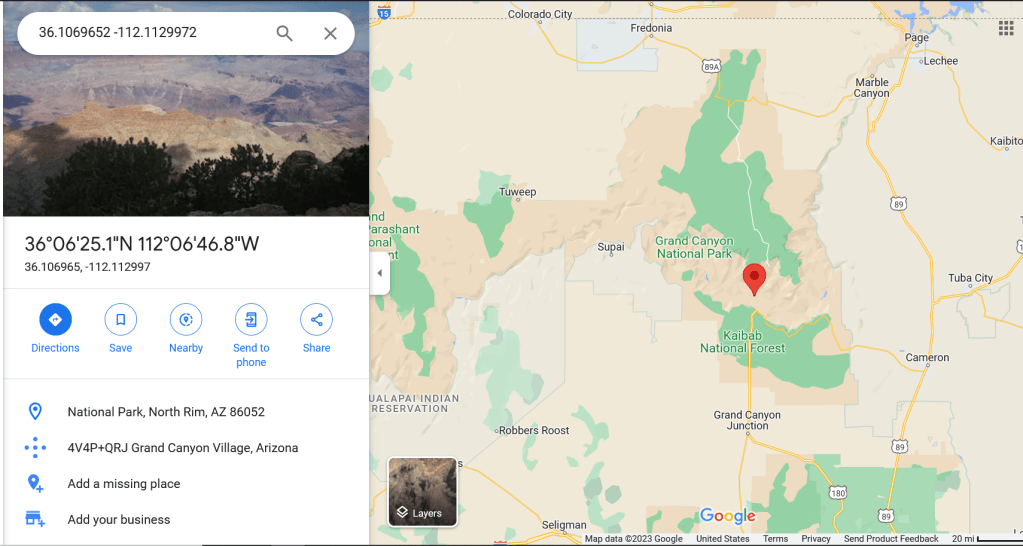
Looks great!
We could run this code as its own script and loop over the names of the output file from Part1. But since we have the name variable figured out in that code can add just a couple of lines into our Part1 script and pull this at the same time.
Below is the consolidated script with my new libraries at the top, the Google API code in the middle (with some generic error handling and the updated output just below that).
Now that you’ve got your data ready keep going to Part3 of this series to learn how we’re going to turn it into the interactive map!
import time
import datetime
from selenium.webdriver import Firefox
from selenium.webdriver.firefox.options import Options
import os
from bs4 import BeautifulSoup
import urllib
import requests
import json
import pprint as pp


##First let's create a list of states and a FOR loop that can iterate across that list to create each url needed for each of
## 50 states listed.
outputlist=[]
states = ['AL','AK','AZ','AR','CA','CO','CT','DE','FL','GA','HI','ID','IL','IN','IA','KS','KY','LA','ME','MD','MA',
          'MI','MN','MS','MO','MT','NE','NV','NH','NJ','NM','NY','NC','ND','OH','OK','OR','PA','RI','SC','SD','TN',
          'TX','UT','VT','VA','WA','WV','WI','WY','AS','PR','VI','MP' ]


for entry in states:
    url = 'https://www.nps.gov/state/'+entry+'/index.htm'
    ##With each URL open a headless browser session and save the html code from the page
    opts = Options()
    opts.set_headless()
    browser = Firefox(options=opts)
    browser.get(url)
    html_save = browser.page_source
    browser.quit()

    ##Save off the HTML code.  Strictly speaking this could all be done in memory but having the saved file allows for
    ##troubleshooting
    try:
        os.remove("HTMLOut.txt")
    except OSError:
        pass

    with open('HTMLOut.txt','w', encoding='utf-8') as f:
        f.write(html_save)


    ##Read the saved file back into Python with bs4
    parkpage = r"HTMLOut.txt"
    page = open(parkpage, encoding ='utf-8')
    soup = BeautifulSoup(page.read(),'html.parser')
    parkList = soup.find(id="parkListResultsArea")
    ##This will find only the places in the page where the class is equal to "clearfix"
    parkBlocks=parkList.find_all(class_="clearfix")
    ##This shows that there are 13 entries, which is how many parks we wanted to find!
    numblocks=len(parkList.find_all(class_="clearfix"))
    #Next we can iterate across the values and extract what we need from each of the 13 entries
    for blocknum in range(0,numblocks):
        name = parkBlocks[blocknum].a.text
        description =  parkBlocks[blocknum].p.text.replace('\n',' ')
        linksuffix = parkBlocks[blocknum].a.get('href')
        fulllink = str("https://www.nps.gov"+linksuffix)
        parktype= parkBlocks[blocknum].h2.text

        ##Use Google API to get the lat/long data
        urlname = name.replace(' ', '+')
        results = requests.get('https://maps.googleapis.com/maps/api/geocode/json?address='+urlname+'&key='+ apikey)
        jsonresults = results.json()
        if str(jsonresults["status"]) == 'ZERO_RESULTS':
            lat = '0'
            long = '0'
        else:
            lat = str(jsonresults["results"][0]["geometry"]["location"]["lat"])
            lng = str(jsonresults["results"][0]["geometry"]["location"]["lng"])

        outdata =  (name,description,linksuffix,fulllink,parktype,lat,lng)
        outline = '|'.join(outdata)+'\n'
        #print (outline)
        outputlist.append(outline)

###Delete any existing output and replace with the above data
filename = 'NPS_Out.txt'
filelocation = "C:\\Users\\adsmith\\Desktop\\"
filepath = str(filelocation)+str(filename)
try:
    os.remove(filepath)
except OSError:
    pass
for outline in outputlist:
    print (outline)
    f=open(filepath, 'a', encoding='utf-8')
    f.write("%s" % outline)
    f.close()
 Amateur Data Science